Drop-in Shopify Liquid Sections
Copy. Paste.
Ship faster.
Production-ready Liquid sections for Shopify OS 2.0. Built for developers and store owners who want clean code — not another drag-and-drop shortcut.
Works with all OS 2.0 themes
One-time payment · instant download
No app required
1{%- comment -%} FunnelCore — Marquee Section {%- endcomment -%}
2
3<style>
4 .fc-marquee-track { display: flex; animation: fc-scroll 24s linear infinite; }
5</style>
6
7<div class="fc-marquee">
8 {%- for item in section.blocks -%}
9 <span class="fc-marquee-item">{{- item.settings.text -}}</span>
10 {%- endfor -%}
11</div>
The Toolkit
Ready to drop in.
Zero bloat.
Block

Block · Shopify OS 2.0
Better Breadcrumbs - Shopify Section & Block
You will create what's known as 'hierarchical' or Amazon-style breadcrumbs. Where each product has a main parent collection. It can still be in multiple collections, but you choose a main parent.
In other words, this breadcrumb does not show the customer journey. Instead, it shows how your store is organized.
This is better for SEO, because it is more consistent and creates a clear structure that Google can understand, with plenty of internal links.
Use it on product, collection, or static pages
Display sub-collection structure
Generates Rich Snippet Schema code for Google.
Customizable design settings
Compatible with any theme
Watch the video for more details.
Block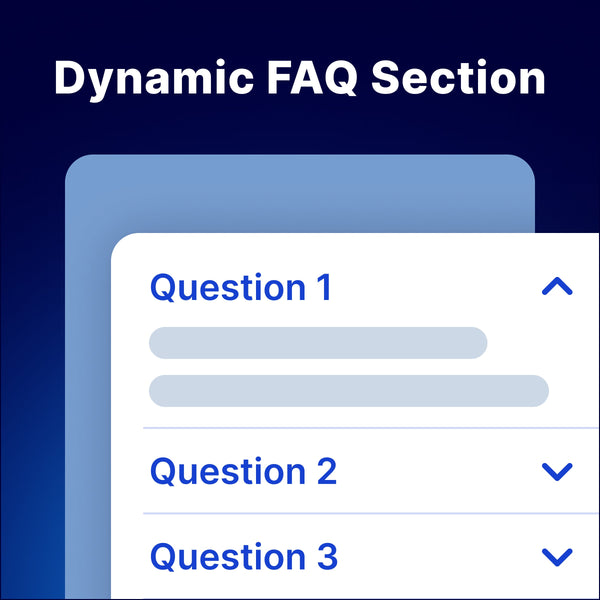
Block · Shopify OS 2.0
Dynamic FAQ Block for Horizon
The accordion looks exactly like the one built-in to Horizon themes, and it has all the same design settings.
However, the key difference is that you do not add each accordion row yourself. Rather, they are generated automatically from a Metaobject.
The tutorial video explains how to set up the Metaobject. The instructions file you receive will also contain the exact steps.
Schema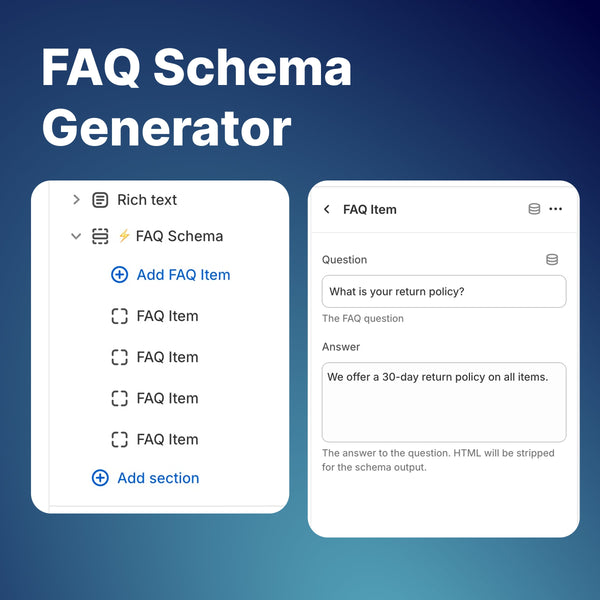
Schema · Shopify OS 2.0
FAQ Schema Section for Shopify
Add the section to any page to generate a FAQ Schema.
Each FAQ Item is a question/answer pair. Add as many blocks as you like. Drag the section anywhere you like - it's invisible!
After publishing, you can test that your schema is working using Rich Results test.
Don't know what Structured Data or Rich Snippets are? Watch my video - https://www.youtube.com/watch?v=R3EfboOPq9I
Section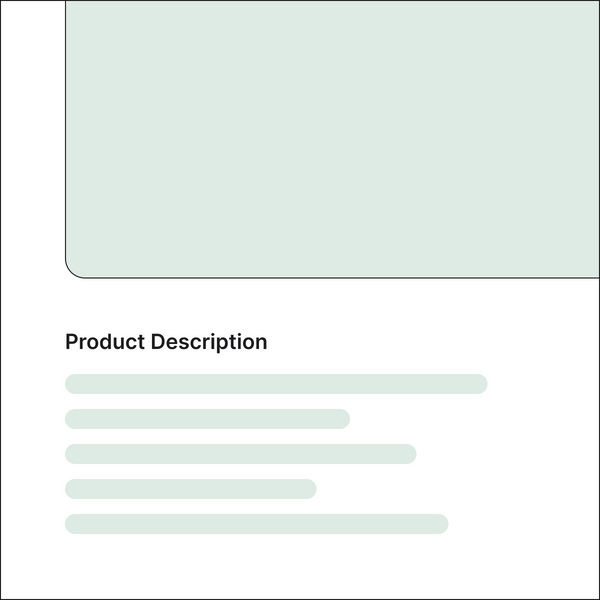
Section · Shopify OS 2.0
Product & Collection Description Section for Shopify
Most themes don't come with a description section. They only have a description block, at the top-right of the page ↗ amongst the buy buttons and other info.
That's a problem if you have a really long description. It takes up too much space.
I prefer to have a short summary at the top, and then a longer, more detailed description lower on the page. That's what this section does.
This section outputs the main "Description" field from your product admin page. This is not a richtext section, nor is it a secondary description.
Also use it on collection pages
On collection pages, this section will output your collection description.
It allows for a short description above your product grid, and then a full-length one below for SEO purposes, making it as long and content-rich as you want.
Block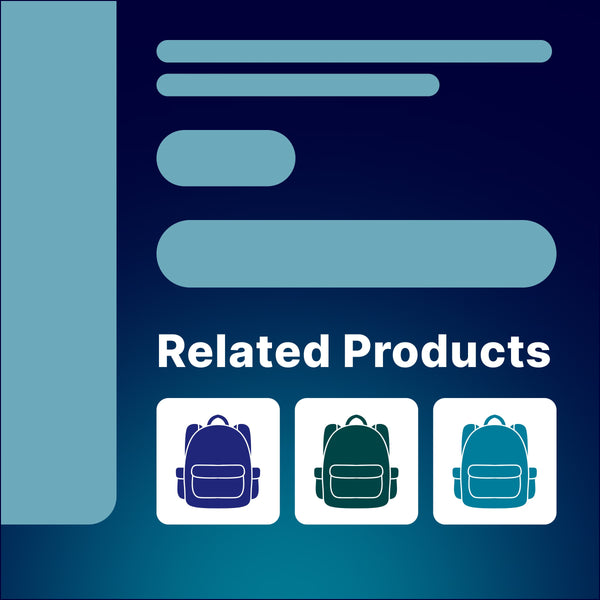
Block · Shopify OS 2.0
Related Product Swatches - Shopify Theme Block
Option 1: Show your Color options
Many stores split their colors into separate products instead of using variants.
Gymshark uses this strategy, but features the other products using swatches:
Option 2: Create an Upsell or Recommendation
This can take many forms - a combo set or a recommendation like "Frequently bought with" or "Pairs well with":
Features:
Control related products using a Metafield or hook in to the Search & Discovery app
Adjust column width and mobile spacing
Show titles on hover, either as a tooltip or below products.
Can be used multiple times on same page with different Metafields
Section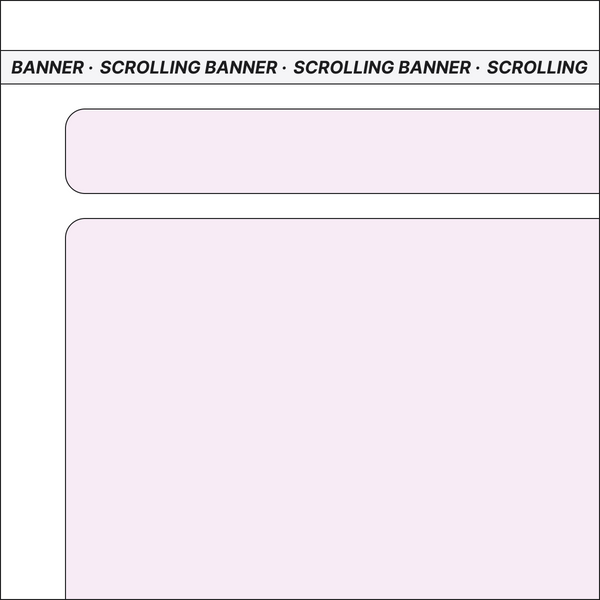
Section · Shopify OS 2.0
Scrolling Marquee Section for Shopify
This feature is often called a "Ticker", "scrolling announcement bar", etc...
Use it for a variety of different content, anywhere on the page, and customize the design to your needs.
You can make it unique with emoji's, images, fonts...
Link to sales or new products
Use emojis or images
Lots of settings to customize the design
Control the animation speed & direction
Watch the video for more info.
Section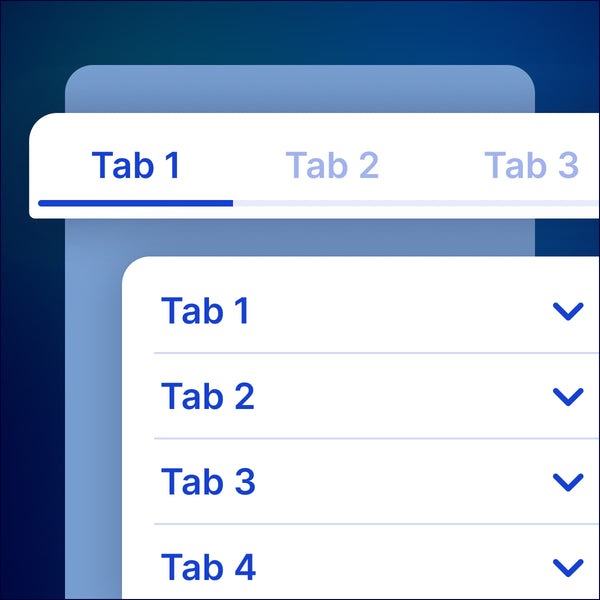
Section · Shopify OS 2.0
Tabs Section for Shopify
Each tab is a block. You can use different types of content in each tab:
Product Description
This simply outputs the product description. Really useful if your description is long, and you don't want it taking up a lot of space above the Add to Cart button.
Rich Text
Add any text here. You can use this for text that is shown across all products, or you can use a Metafield to show text that is unique to a product, like specs.
Page
This outputs any page content. For example, the Shipping & Returns policy, or an FAQ page.
Custom Liquid
You can use code here to output anything you want. Great for embeddable content like iframes for videos, calendars and other widgets.
App block
You can add any app here that provides blocks. A common use is a customer reviews app like JudgeMe, Yotpo, Shopify Product Reviews and others.
Mobile view:
Tabs will turn into accordions on mobile screens.
Guide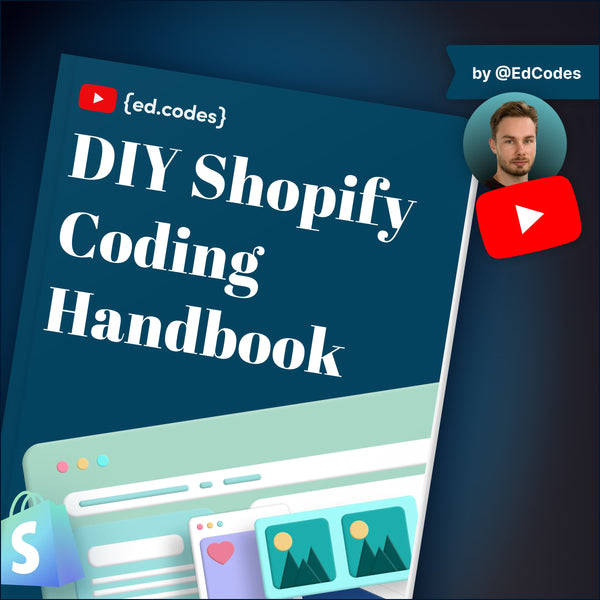
Guide · Shopify OS 2.0
The DIY Shopify Coding Handbook
A handbook for absolute beginners to coding with HTML, CSS, and Shopify Liquid.
This book will arm you with the skills and knowledge to go beyond the theme settings and start modifying Shopify stores with code!
This book is not intended for developers. It's for the amateur coder - store owners, designers... anyone who works on Shopify stores.
Chapters below:
Why FunnelCore
Built for devs.
Bought by stores.
Every section is hand-coded, tested on real stores, and delivered as clean Liquid — not a compiled mystery package with 3 dependencies.
Clean Liquid — always
No minified blobs, no third-party scripts. Every file is readable, editable, and yours to keep.
OS 2.0 compatible
Works with Dawn, Horizon, and all major OS 2.0 themes. Theme Editor settings included.
Install guide included
Every download includes a step-by-step PDF. You'll be live in under 10 minutes.
One-time payment
No subscriptions. Buy once, use on unlimited stores. Yours forever.
Performance first
Zero render-blocking scripts. Pure CSS animations. Lighthouse scores stay green.
Built by a developer
Not generated, not outsourced. Tested on real stores and updated when Shopify changes things.
8+
Sections & Blocks
<10m
Avg install time
0
Apps required
OS 2.0
Compatible
How it works
From purchase to live in minutes.
01
Purchase & download
Buy the section you need. You'll get an instant download link — a
.liquid file and a PDF install guide.→ fc-marquee.liquid
→ install-guide.pdf
→ install-guide.pdf
02
Paste into your theme
Open Shopify's code editor, navigate to the
sections/ folder, create a new file, and paste the contents in.Online Store
→ Themes → Edit code
→ sections/ → New section
→ Themes → Edit code
→ sections/ → New section
03
Add it in the Theme Editor
Hit Customize, click "Add section", and your new section appears. Configure it visually — no coding needed from here.
Customize → Add section
→ FunnelCore — Marquee
→ Configure & publish
→ FunnelCore — Marquee
→ Configure & publish
Featured
Bestseller
Marquee Section
A smooth infinite scrolling marquee for Shopify OS 2.0. Fully configurable from the Theme Editor — speed, direction, content, and colours.
Works on all OS 2.0 themes
Pure CSS animation — zero JS
Unlimited store licence
{%- comment -%} FunnelCore — Marquee {%- endcomment -%}
<style>
.fc-marquee { overflow: hidden; }
.fc-marquee-track {
display: flex;
animation: fc-scroll 24s linear infinite;
}
</style>
<div class="fc-marquee">
{%- for item in section.blocks -%}
<span>{{- item.settings.text -}}</span>
{%- endfor -%}
</div>
Clean · Documented · Yours